 roshan
fcc0cae05a
roshan
fcc0cae05a
## Summary Add Zoom Decisions and Zoom Decisions Pro to **Admin > Decision Models**. Configure Zoom from either Voice or Decision Models. Both pages use one shared connection and one encrypted API key and secret. Zoom Decisions is opt-in: a Zoom decision provider exists only after an admin connects Zoom on Decision Models. A Voice-only setup never creates one. Decision setup does not activate Voice defaults or select a decision model. Read current credentials and sign a fresh JWT for each request. Keep Zoom decision models out of chat. Removing Zoom from Decision Models deletes only the decision provider and keeps Scribe. Disconnecting Zoom on Voice also removes its linked decision provider, after selected-model checks. The migration only adds the link column; it writes no rows. Both setup links open the [Zoom AI Services documentation](https://developers.zoom.us/docs/ai-services/). ## Validation - 336 focused backend tests and nine frontend component tests passed. - Type checks, lint, translations, deterministic migration checks, and touched-file hooks passed. - A live Zoom Decision API request returned HTTP 200 with a JWT signed using the existing Scribe credentials. - The current-head preview opens the credential form directly from Decision Models. No Voice setup is required first. - PostgreSQL tests cover opt-in linking from Decision Models only, rotation, rollback, relink and duplicate-link rejection, and deletion. ## Screenshot Shared Zoom setup from Decision Models at `9b7792d`. Credentials are empty. This screenshot demonstrates the form, not a completed connection test.  ## Stack testing (`29eec61fb4`) Tested the full stack at the top commit on a local dev stack, desktop and 390×844 mobile. OpenAI decisions and chat used a real key. TypeSafe, Zoom, OpenRouter, and Vercel AI Gateway used local mock upstreams; Onyx auth, validation, persistence, encryption, and UI were real. - Fixed during testing: migration `9071f636d5f2` now revises `4d8453213439` (#16351 on main). The old `down_revision` left two alembic heads and failed most CI jobs on this PR and #16284. - Passed: Voice-only Zoom setup creates no decision provider. Decision Models opens the shared credential form directly. - Passed: one encrypted Voice connection; the linked LLM provider stores no duplicate key. JWT validation and the Scribe WebSocket handshake worked against the mock. - Passed: bad credentials fail. Both setup links open the Zoom AI Services docs. - Passed: selection guards block Zoom removal and Voice disconnect. Removing Zoom from Decision Models keeps Voice/Scribe. Zoom decision models are absent from chat. - **Fixed in #16276 (`37c248ec04`):** after Zoom is disconnected on Voice, sidebar navigation to Decision Models now shows **Connect** without a reload (retested at `78cf4ccb12`). Before the fix, the card showed **Configure/Delete** from a stale `adminLlmProvidersPaged` SWR cache. 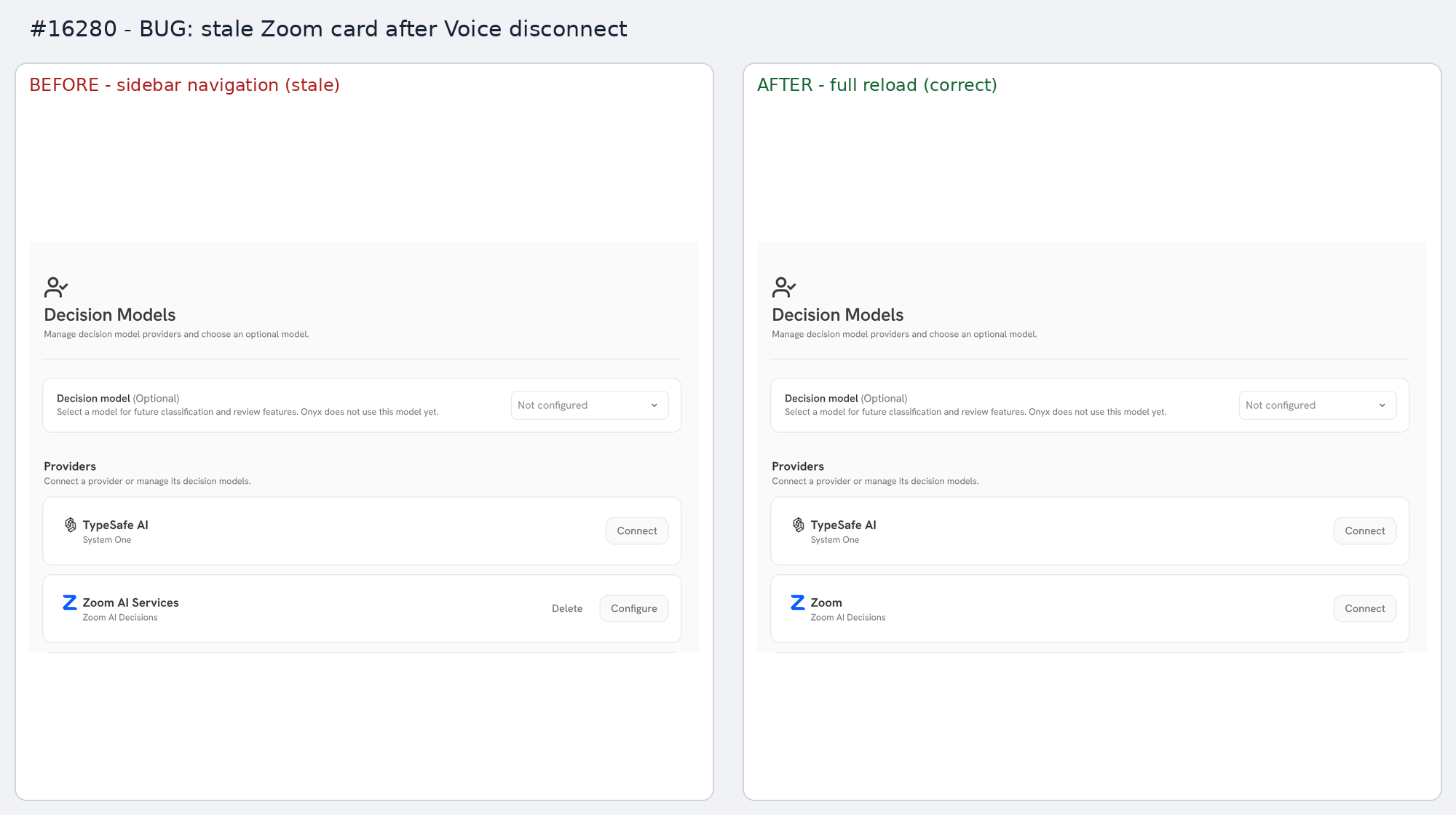 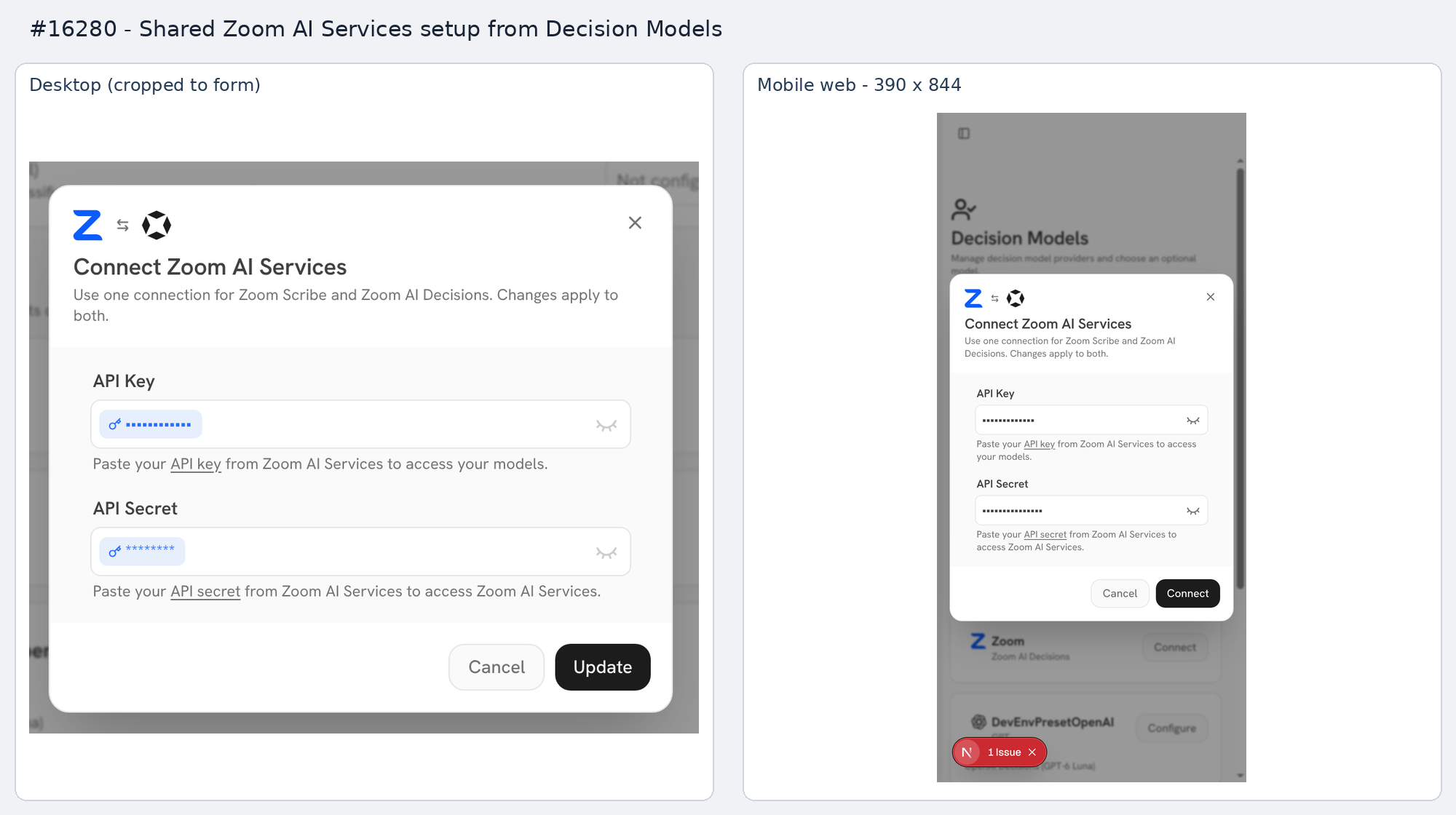 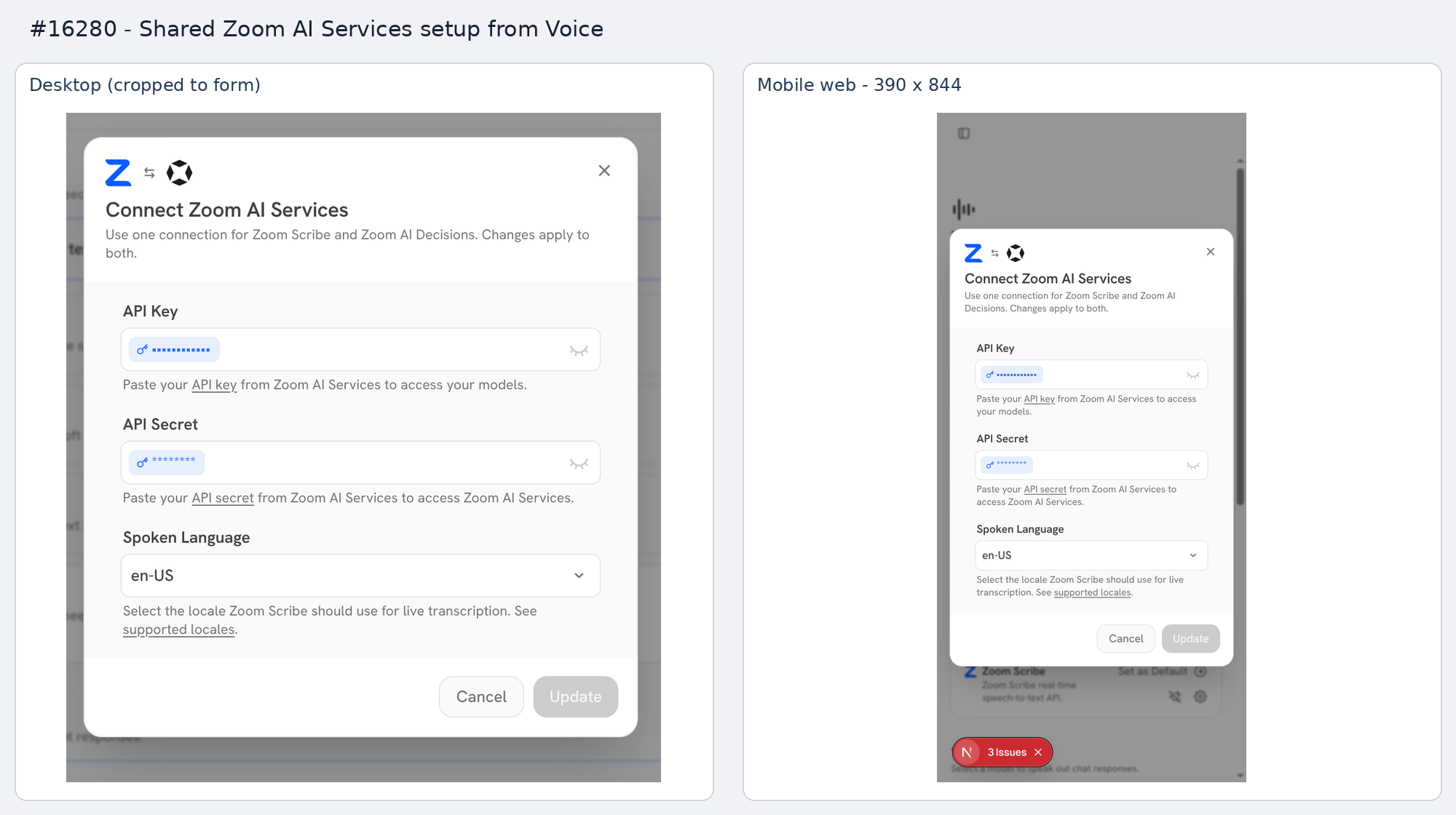   ## Stack PR 3 of 4: #16262 → #16276 → **#16280** → #16284. <!-- This is an auto-generated comment: release notes by coderabbit.ai --> ## Summary by CodeRabbit * **New Features** * Added Zoom AI Decisions with two models supporting text and image inputs. * Added shared Zoom AI Services setup across Voice and Decision Models, including connection selection, credential reuse, rotation, and removal. * Added provider discovery, model capability indicators, decision-specific validation, and localized interface text. * Renamed Zoom Scribe setup labels to Zoom AI Services. * **Bug Fixes** * Improved connection validation and rollback. * Improved credential handling and protection against deleting active shared connections. * Preserved existing shared connection settings when updating providers. <!-- end of auto-generated comment: release notes by coderabbit.ai --> Link to Devin session: https://app.devin.ai/sessions/39d77bde91c34b75922bb05c02b93b90 Open in Devin Desktop: https://app.devin.ai/desktop/session/39d77bde91c34b75922bb05c02b93b90?variant=devin Requested by: @rohoswagger
This is a Next.js project bootstrapped with create-next-app.
Getting Started
Install bun: https://bun.sh/docs/installation
Install all dependencies: bun install.
Then, run the development server:
bun run dev
Open http://localhost:3000 with your browser to see the result.
Note: if you are having problems accessing the ^, try setting the WEB_DOMAIN env variable to
http://127.0.0.1:3000 and accessing it there.
Tip
Packages are installed automatically when switching branches after
package.jsonchanges with pre-commit configured.
Connecting to a Cloud Backend
To test your local frontend development server against a cloud backend (e.g., staging or production),
create a .env.local file in the web/ directory with the following configuration:
# Point local dev server to cloud backend
INTERNAL_URL=https://st-dev.onyx.app/api

# Debug auth cookie for authenticating against remote backend
# This cookie is automatically injected into API requests when in development mode
# To get this value:
#   1. Go to https://st-dev.onyx.app (or your target backend URL) and log in
#   2. Open DevTools (F12) → Application → Cookies → [your backend domain]
#   3. Find the "fastapiusersauth" cookie and copy its value
#   4. Paste the value below (without quotes)
# Note: This cookie may expire, so you may need to refresh it periodically
DEBUG_AUTH_COOKIE=your_cookie_value_here
By default, this does NOT override existing cookies, so if you've logged in previously, you
may need to delete the cookies for the localhost domain.
Important notes:
- The
.env.localfile should be created in theweb/directory (same level aspackage.json) - After creating or modifying
.env.local, restart your development server for changes to take effect - The
DEBUG_AUTH_COOKIEis only used in development mode (NODE_ENV=development) - If
INTERNAL_URLis not set, the frontend will connect to the local backend athttp://127.0.0.1:8080 - Keep your
.env.localfile secure and never commit it to version control (it should already be in.gitignore)
Testing
This testing process will reset your application into a clean state. Don't run these tests if you don't want to do this!
Bring up the entire application.
- Install playwright dependencies (run
bun installfirst sobunxresolves to the repo-pinned Playwright innode_modulesinstead of fetching the latest version)
bun install
bunx playwright install
- Run playwright (the
playwrightscript expands toplaywright test)
bun run playwright
To run a single test:
bun run playwright landing-page.spec.ts
If running locally, interactive options can help you see exactly what is happening in the test.
bun run playwright --ui
bun run playwright --headed
- Inspect results
By default, playwright.config.ts is configured to output the results to:
web/output/playwright/
- Visual regression screenshots
Screenshots are captured automatically during test runs and saved to web/output/screenshots/.
To compare screenshots across CI runs, use:
ods screenshot-diff compare --project admin
For more information, see tools/ods/README.md.