mirror of
https://github.com/VirtualDrivers/Virtual-Display-Driver.git
synced 2026-10-21 22:22:27 -05:00

185 lines
7.8 KiB
Markdown
185 lines
7.8 KiB
Markdown
# Virtual Display Driver
|
|
based on Microsoft Indirect Display Driver Sample. This creates a virtual display in Windows that acts and functions just like a real one. It's useful for streaming, virtual reality applications, recording, headless servers, etc. The benefit over a physical display is the ability to adjust resolutions and refresh rates beyond the physical displays capabilities. For example, this would enable the ability to stream a game from your home PC using game streaming software at 240hz at 8K while owning a 60hz 1080p monitor (unrealistic, but explains the abilities well). For servers without displays, this enabled remote desktop and screen streaming to other systems as if there were a display installed.
|
|
|
|
Supports emulating resolutions from **640 x 480** to **7680 x 4320 (8K)**, and refresh rates including **60hz, 75hz, 90hz, 120hz, 144hz, 165hz, 240hz, 480hz,** and **500hz.**
|
|
|
|
This project uses the official Windows Indirect Display Driver combined with the IddCx class extension driver.
|
|
|
|
## Download
|
|
|
|
- [Windows 10 and 11 (no HDR)](https://github.com/itsmikethetech/Virtual-Display-Driver/releases/tag/23.10.20.2)
|
|
- [Windows 11 22H2+ (HDR)](https://github.com/itsmikethetech/Virtual-Display-Driver/releases/tag/23.12.2HDR)
|
|
|
|
## Installation
|
|
|
|
1. Download the latest version from the releases page, and extract the contents to a folder.
|
|
2. Copy `option.txt` to `C:\IddSampleDriver\option.txt` before installing the driver **(important!)**.
|
|
3. Right click and run the *.bat file **as an Administrator** to add the driver certificate as a trusted root certificate.
|
|
4. Don't install the inf. Open device manager, click on any device, then click on the "Action" menu and click "Add Legacy Hardware".
|
|
5. Select "Add hardware from a list (Advanced)" and then select Display adapters
|
|
6. Click "Have Disk..." and click the "Browse..." button. Navigate to the extracted files and select the inf file.
|
|
7. You are done! Go to display settings to customize the resolution of the additional displays. These displays show up in Sunshine, your Oculus or VR settings, and should be able to be streamed from.
|
|
8. You can enable/disable the display adapter to toggle the monitors.
|
|
|
|
Ps. Make sure that options.txt is accesible for the system at `C:\IddSampleDriver\option.txt` or the installation will fail.
|
|
|
|
## Uninstalling
|
|
|
|
1. Open device manager
|
|
2. Locate Display Adapters
|
|
3. Right click on IddSampleDriver, choose "Uninstall device"
|
|
4. There is a new popup window, in there click Attempt to remove driver for this device.
|
|
|
|
Next instructions are for those cases where the device is removed from the system, but driver stil remains. This happens when there is a connection to the device while trying to remove the drivers. To
|
|
remedy this, there is a a few tricks built into windows. So here goes:
|
|
|
|
5. Open up a powershell terminal and input this:
|
|
6. ```pnputil /enum-drivers```
|
|
6. Locate iddsampledriver.inf, there might be multiple pages of text. Make a note of the "published name", it's often unique for your system, but might look like "oem139.inf"
|
|
7. ```pnputil /delete-driver oem139.inf```
|
|
|
|
## HDR Support Now Available for Windows 11 22H2+
|
|
|
|
### Resolutions:
|
|
|
|
640 x 480
|
|
800 x 600
|
|
1024 x 768
|
|
1152 x 864
|
|
1280 x 720
|
|
1280 x 768
|
|
1280 x 800
|
|
1280 x 960
|
|
1280 x 1024
|
|
1360 x 768
|
|
1366 x 768
|
|
1440 x 900
|
|
1400 x 1050
|
|
1440 x 1440
|
|
1600 x 900
|
|
1600 x 1024
|
|
1680 x 1050
|
|
1920 x 1080
|
|
1920 x 1200
|
|
2560 x 1440
|
|
2560 x 1600
|
|
2732 x 2048
|
|
2880 x 1620
|
|
2880 x 1800
|
|
3008 x 1692
|
|
3840 x 2160
|
|
3840 x 2400
|
|
4096 x 2304
|
|
5120 x 2880
|
|
6016 x 3384
|
|
7680 x 4320
|
|
|
|
### Just Added!
|
|
|
|
2732 x 2048
|
|
2560 x 1080
|
|
2880 x 1200
|
|
3440 x 1440
|
|
3840 x 1600
|
|
4320 x 1800
|
|
5120 x 2160
|
|
5760 x 2400
|
|
6880 x 2880
|
|
7680 x 3200
|
|
8640 x 3600
|
|
10240 x 432
|
|
2880 x 900
|
|
3840 x 1080
|
|
3840 x 1200
|
|
4320 x 1200
|
|
5120 x 1440
|
|
5120 x 1600
|
|
5760 x 1600
|
|
5760 x 1800
|
|
6400 x 1800
|
|
6480 x 1800
|
|
7680 x 2160
|
|
7680 x 2400
|
|
8640 x 2400
|
|
2388 x 1668
|
|
2400 x 1080
|
|
3456 x 2234
|
|
3456 x 2234
|
|
|
|
### Refresh Rates:
|
|
|
|
30Hz
|
|
60Hz
|
|
75Hz
|
|
90Hz (Great for VR!)
|
|
120Hz
|
|
144Hz
|
|
165Hz
|
|
240Hz
|
|
480Hz
|
|
500Hz
|
|
|
|
### Videos
|
|
|
|
[](https://youtu.be/nNWpbRUPkn4 "How to install a virtual display")
|
|
|
|
[Previous Video: How to install a virtual display](https://youtu.be/byfBWDnToYk "How to install a virtual display")
|
|
|
|
### Screenshots:
|
|
|
|

|
|
|
|

|
|
|
|

|
|
|
|
|
|
## Background reading ##
|
|
|
|
Start at the [Indirect Display Driver Model Overview](https://msdn.microsoft.com/en-us/library/windows/hardware/mt761968(v=vs.85).aspx) on MSDN.
|
|
|
|
### Code structure ###
|
|
|
|
The sample driver code is very simplistic and does nothing more than enumerate a single monitor when its device enters the D0/started power state. The IDD runs in Session 0 without any components running in the user session, so any driver instability will not affect the stability of the system as a whole. The IDD is a user-mode only model with no support for kernel-mode components. As such, the driver is able to use any DirectX APIs in order to process the desktop image. In fact, the IddCx provides the desktop image to encode in a DirectX surface.
|
|
|
|
* `Direct3DDevice` class
|
|
* Contains logic for enumerating the correct render GPU from DXGI and creating a D3D device.
|
|
* Manages the lifetime of a DXGI factory and a D3D device created for the render GPU the system is using to render frames for your indirect display device's swap-chain.
|
|
* `SwapChainProcessor` class
|
|
* Processes frames for a swap-chain assigned to the monitor object on a dedicated thread.
|
|
* The sample code does nothing with the frames, but demonstrates a correct processing loop with error handling and notifying the OS of frame completion.
|
|
* `IndirectDeviceContext` class
|
|
* Processes device callbacks from IddCx.
|
|
* Manages the creation and arrival of the sample monitor.
|
|
* Handles swap-chain arrival and departure by creating a `Direct3DDevice` and handing it off to a `SwapChainProcessor`.
|
|
|
|
## License
|
|
|
|
MIT and CC0 or Public Domain (for changes I made, please consult Microsoft for their license), choose the least restrictive option.
|
|
|
|
## Disclaimer:
|
|
|
|
This software is provided "AS IS" with NO IMPLICIT OR EXPLICIT warranty. It's worth noting that while this software functioned without issues on my system, there is no guarantee that it will not impact your computer. It operates in User Mode, which reduces the likelihood of causing system instability, such as the Blue Screen of Death. However, exercise caution when using this software.
|
|
|
|
## Acknowledgements
|
|
|
|
Shoutout to **Roshkins** for the original repo:
|
|
https://github.com/roshkins/IddSampleDriver
|
|
|
|
Shoutout to **Baloukj** for the 8-bit / 10-bit support. (Also, first to push the new Microsoft Driver public!)
|
|
https://github.com/baloukj/IddSampleDriver
|
|
|
|
Shoutout to **Anakngtokwa** for assisting with finding driver sources.
|
|
|
|
**Microsoft** Indirect Display Driver/Sample (Driver code):
|
|
https://github.com/microsoft/Windows-driver-samples/tree/master/video/IndirectDisplay
|
|
|
|
Thanks to **AKATrevorJay** https://github.com/akatrevorjay/edid-generator for the hi-res EDID.
|
|
|
|
Shoutout to **zjoasan** and **Bud** for the helper scripts and build support!
|
|
|
|
## Star History
|
|
|
|
[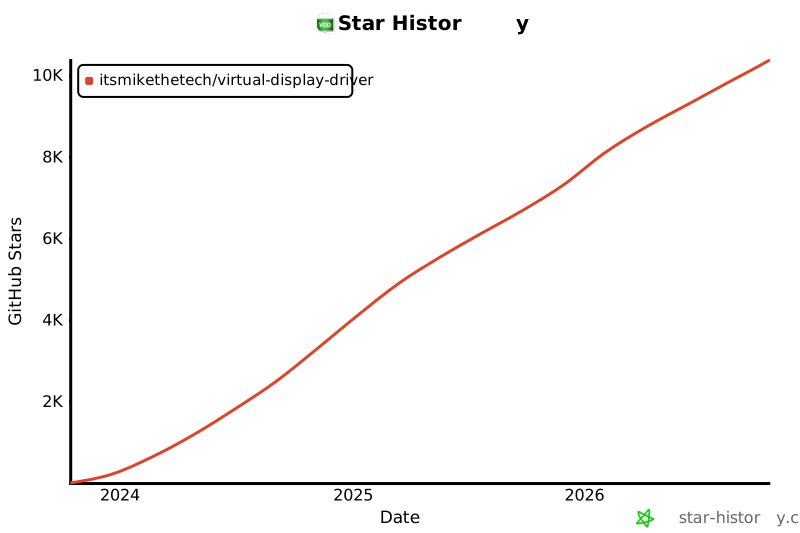](https://star-history.com/#itsmikethetech/Virtual-Display-Driver&Date)
|
|
|